

Actions
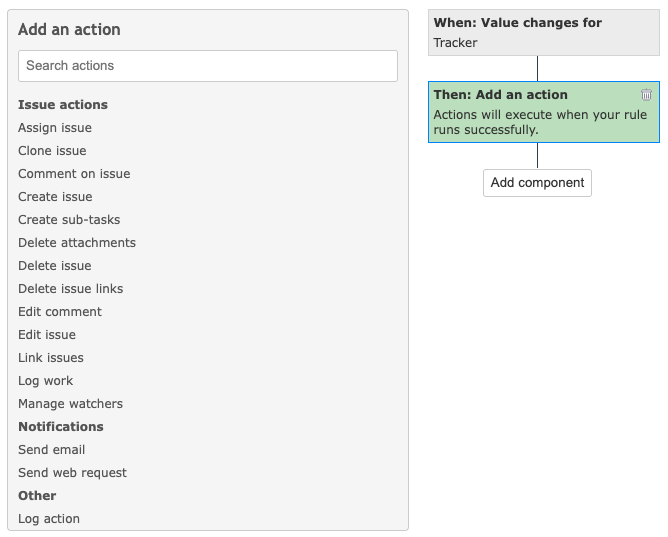
Actions define what happens when an automation is triggered. Multiple actions may be combined in a single automation.
Issue Actions
This section describes all available issue actions.
Assign Issue
Changes the issue assignee.
Main setting: Assign to – user selects one of five options:
-
Specific user – assign issue to a specific user.
-
User in a group – assign to a user from a selected group.
-
User in a role – assign to a user from a selected role.
-
Copy from another field – assign to a user copied from another field.
-
Copy from parent issue – assign to a user copied from the parent issue.
Additional settings:
-
Specific user → Select user: choose from application users.
-
User in a group →
Assign method: choose one of the following:
Balanced workload – assign to the least occupied user based on assigned tasks.
-
Random user – assign to a randomly selected user.
-
Round-robin – assign sequentially across group members to balance tasks (useful for support/helpdesk).
Select group: choose one of the existing groups.
User in a role →
-
Assign method: same as above (Balanced workload, Random user, Round-robin).
-
Select role: choose one of the existing roles.
Copy from another field → Select field: choose a user-type native or custom field.
Copy from parent issue → no extra settings; assignee is copied from the parent issue.
Clone Issue
Duplicates the current issue, with optional field changes.
Main setting: Select fields to set – select task fields to change when copying the issue.
Possible fields:
-
Status
-
Project (ensure the automation rule applies to all projects)
-
Tracker
-
Priority
-
Author
-
Assignee
-
Target version
-
Subject (smart tokens supported)
-
Description (smart tokens supported)
-
Start date (fixed date or smart tokens)
-
Due date (fixed date or smart tokens)
-
Estimated time (smart tokens supported)
-
Private flag
One or multiple fields may be selected. Leaving empty copies the issue without changes.
Comment on Issue
Adds a comment to the issue.
Setting:
- Comment text (smart tokens supported).
Create Issue
Generates a new issue, optionally with predefined fields and associations.
Main setting: Select fields to set – choose task fields to define when creating the issue.
Possible fields: (same as in Clone Issue)
- Status, Project, Tracker, Priority, Author, Assignee, Target version, Subject, Description, Start date, Due date, Estimated time, Private flag.
Ensure required fields are defined.
Create Sub-task
Creates a sub-task under the current issue.
Main setting: Select fields to set – choose sub-task fields.
Possible fields: (same as Create Issue, applied to sub-task).
Ensure required fields are defined.
Delete Attachments
Removes specified attachments from the issue.
Main setting: Filename – specify which attachments to delete.
Possible values:
-
All attachments
-
Matching (attachments matching a regular expression)
-
Not matching (attachments not matching a regular expression)
Delete Issue
Permanently deletes the issue.
No settings – executes immediately. Use strict conditions to avoid deleting unintended issues.
Delete Issue Links
Removes specified links to other issues.
Main setting: Link type to delete
Possible values:
-
Related to
-
Is duplicate of
-
Has duplicate
-
Blocks
-
Blocked by
-
Precedes
-
Follows
-
Copied to
-
Copied from
One or multiple values can be selected.
Edit Comment
Updates an existing comment.
Settings:
-
Comment to edit → first comment or last comment.
-
New comment content → define new text (smart tokens supported).
Edit Issue
Modifies issue fields.
Main setting: Select fields to set – choose task fields to modify.
Possible fields:
- Status, Project, Tracker, Priority, Author, Assignee, Target version, Subject, Description, Start date, Due date, Estimated time, Private flag.
Link Issues
Establishes a relationship (link) with another issue.
Settings:
-
Link type → select link type (Related to, Duplicate, Blocks, etc.)
-
Issue to link → options:
Trigger issue (the issue that triggered automation).
- Most recently created issue (based on project/application scope).
Log Work
Adds a time entry (spent time) on the issue.
Settings:
-
Hours → fixed value or smart tokens.
-
Date → options: execution time, issue created, issue updated.
-
Comment → optional text.
-
Activity → choose activity (e.g., Design, Development, Testing).
-
User → options:
User who triggered the action
-
Triggered issue assignee
-
Triggered issue author
-
Any available user
Manage Watchers
Adds or removes watchers.
Settings:
-
Add these watchers → select users to add.
-
Remove these watchers → select users to remove.
-
Remove all watchers → remove all watchers (overrides other settings).
Add and remove can be combined. Using “remove all” disables the others.
Notifications
This section describes notification actions.
Send Email
Dispatches a notification email to specified recipients.
Settings: (mirroring standard email fields)
- To – recipient email(s). Options:
Users – select application users.
-
Groups – select application groups.
-
Triggered issue fields – select from issue fields containing users.
-
Manual input – enter any valid email addresses.
CC – same options as “To”.
Bcc – same options as “To”.
Subject – define subject (smart tokens supported).
Body – define email body (smart tokens supported).
Send Web Request
Sends an HTTP request to an external service.
Settings:
-
Web request URL – specify endpoint URL (smart tokens supported).
-
HTTP method – choose from: GET, POST, PUT, PATCH, DELETE.
-
Web request body – options:
Empty
-
Issue data (Redmine format – same as .json API output; see Redmine REST issues)
-
JSON (defined in settings)
-
Custom body (smart tokens supported)
Headers – specify request headers (smart tokens supported).
Expected response codes – list expected codes. If the response does not match, the automation will not proceed. All responses are written to logs.
Other Actions
Log Action
Records a custom message to the automation log (useful for debugging or auditing).
Setting:
- Log message – enter message text (smart tokens supported).